Cricut Vinyl Cheat Sheet: Ultimate 2026 Cut Settings Guide
Looking for a reliable Cricut Vinyl Cheat Sheet to end your crafting frustrations? Every maker knows how disappointing it is to see a blade slice through the backing paper or barely scratch the surface of expensive material. In this 2026 guide, we provide the ultimate Cricut Vinyl Cheat Sheet and expert settings for every project..
In 2026, with dozens of new materials on the market—from ultra-thin matte vinyl to temperamental 3D Puff—the standard presets in Cricut Design Space are often not enough. A professional approach requires calibration for every specific project. In this comprehensive guide, I will share my proven Cricut Vinyl Printable Cheat Sheet, which you can print and keep right above your workspace to save time, money, and sanity.
Why You Need a Cricut Vinyl Cheat Sheet for Every Project
The problem is that blade pressure depends not just on the software, but on the age of your Fine-Point Blade, the stickiness of your mat, and even the ambient temperature in your craft room. If you are using a newer machine like the Cricut Maker 4 or Cricut Explore 3, you may have noticed they cut faster but require more nuanced pressure adjustments.
Relying solely on «Default» settings is the quickest way to ruin a project. This guide is designed to give you the «Sweet Spot» for every popular material, ensuring a perfect weed every single time.
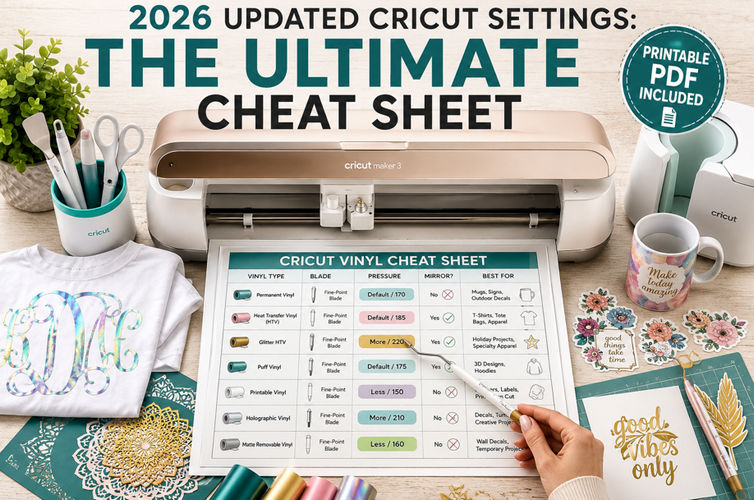
📋 The 2026 Ultimate Cricut Cut Settings Cheat Sheet
| Material Type | Pressure Setting | Blade Type | Mirror (HTV)? | Pro Maker Tip |
| Premium Permanent Vinyl | Default (170) | Fine-Point | NO | Use a Green StandardGrip mat for best results. |
| Everyday Iron-On (HTV) | Default (185) | Fine-Point | YES | Always perform a small test cut in the corner. |
| Glitter / Holographic HTV | More (220) | Fine-Point | YES | Check blade sharpness before starting. |
| Printable Vinyl (Stickers) | Less (150) | Fine-Point | NO | Let ink dry for 10 mins before cutting. |
| 3D Puff Vinyl | Default (175) | Fine-Point | YES | Use firm pressure on your heat press. |
| Heavy Cardstock (80lb+) | More (250) | Fine-Point | NO | Use a brayer to secure it to the mat. |
Mastering Your Crafts: 10 Practical Case Studies
To demonstrate how these settings work in real-world scenarios, let’s look at 10 professional project types. For these examples, I am using high-quality designs that are optimized for clean cutting.
1. Intricate Monograms and Fine Lines
Featured Design: Monogram Collection Big Bundle
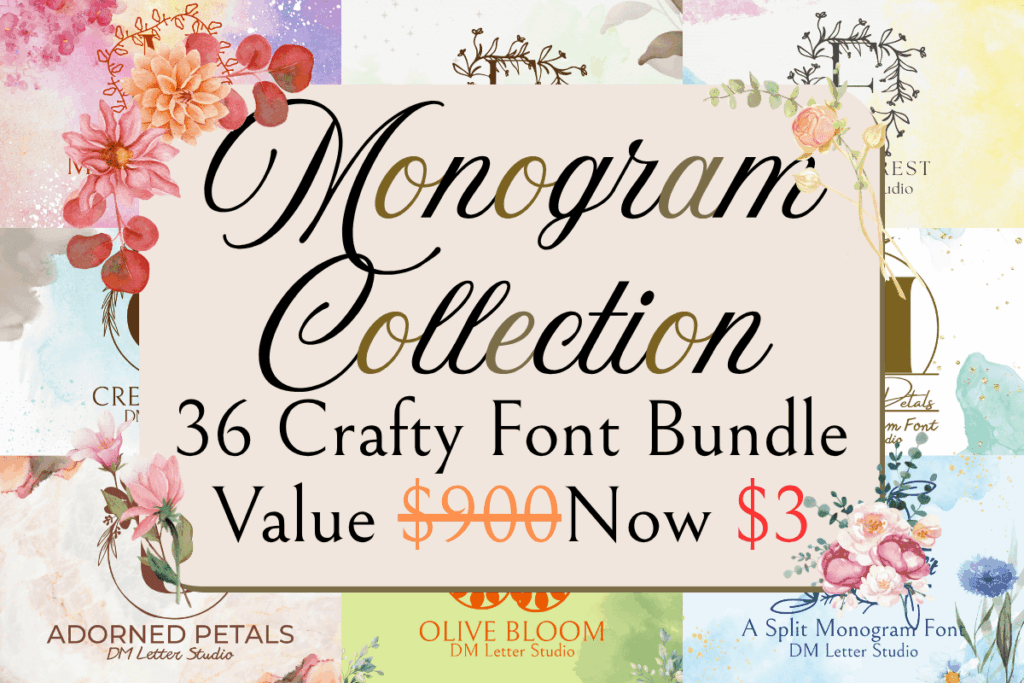
When working with a Cricut Circle Monogram Font, the biggest challenge is preventing the blade from lifting small pieces of vinyl.
Technical Insight: If you are cutting letters smaller than 2 inches, I recommend choosing «Less Pressure» but setting the machine to «2 passes.» This allows for a cleaner edge without tearing the delicate paths of these intricate monograms.
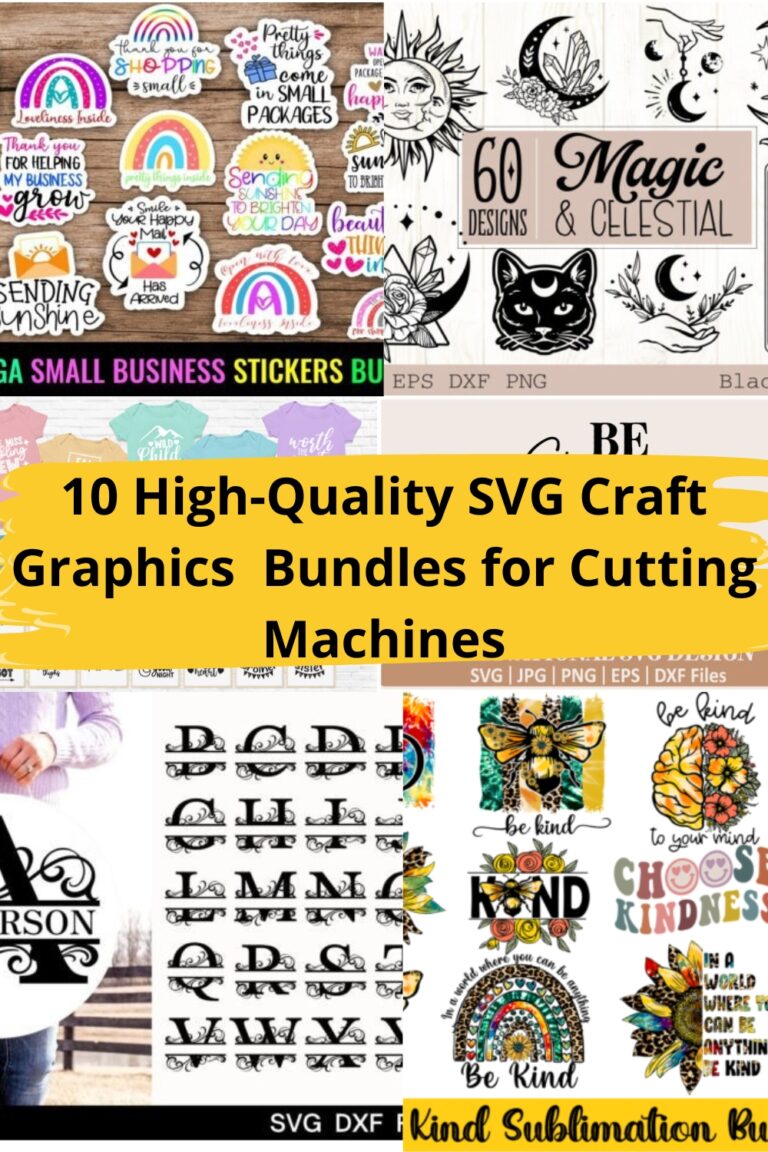
2. High-End Stickers (Print Then Cut)
Featured Design: Floral Aesthetic Small Business Stickers
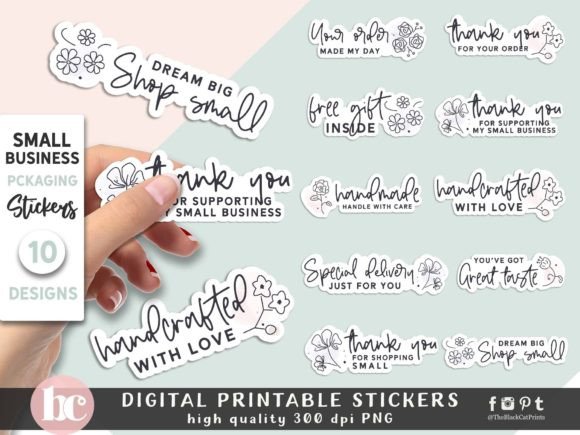
Professional stickers are a goldmine for small businesses. To ensure your Cricut Print then Cut doesn’t shift, always calibrate your machine after every software update. I use this bundle specifically because the files include a pre-made «offset» (white border), which is essential for that professional «die-cut» look.
3. The 3D Puff Vinyl Revolution
Featured Design: Retro Groovy Quotes SVG

Retro and Groovy styles are dominating the 2026 market. These designs are perfect for 3D Puff Vinyl.
Setting Tip: Puff vinyl is thick. Use «Standard» pressure, but ensure your heat press is at exactly 155°C. These specific SVG files work well because the lines are bold enough to allow the material to expand without closing the gaps in the letters.
4. Precision Layering with Shadow Boxes
Featured Design: 3D Shadow Box Bundle Mandala
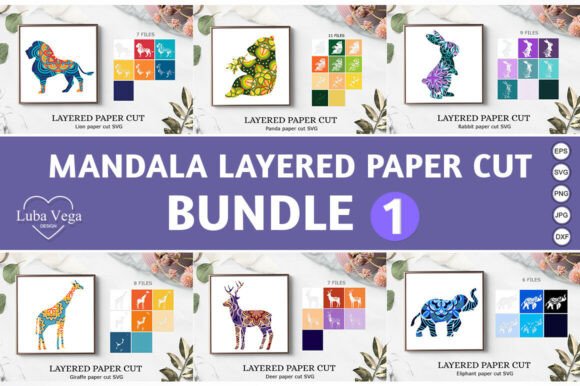
Mandala shadow boxes are the ultimate test of your Cricut Projects Gifts Cardstock Papers settings.
Setting Tip: Use a Blue LightGrip mat. If the mat is too sticky, you will rip the paper when removing it. In Design Space, select «Cardstock (for intricate cuts)» to slow down the blade speed for those thousands of tiny triangular cuts.
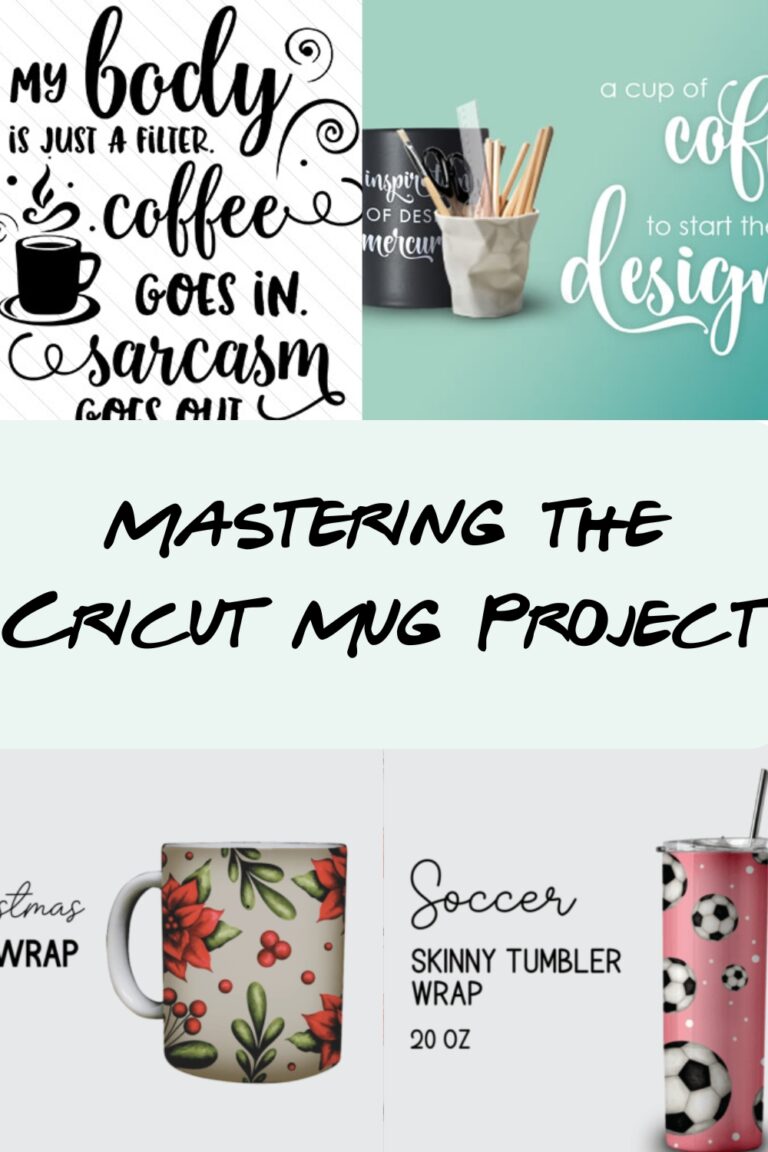
5. Professional Mug Wraps
Featured Design: 36 Full Wrap Mug Sublimation Templates
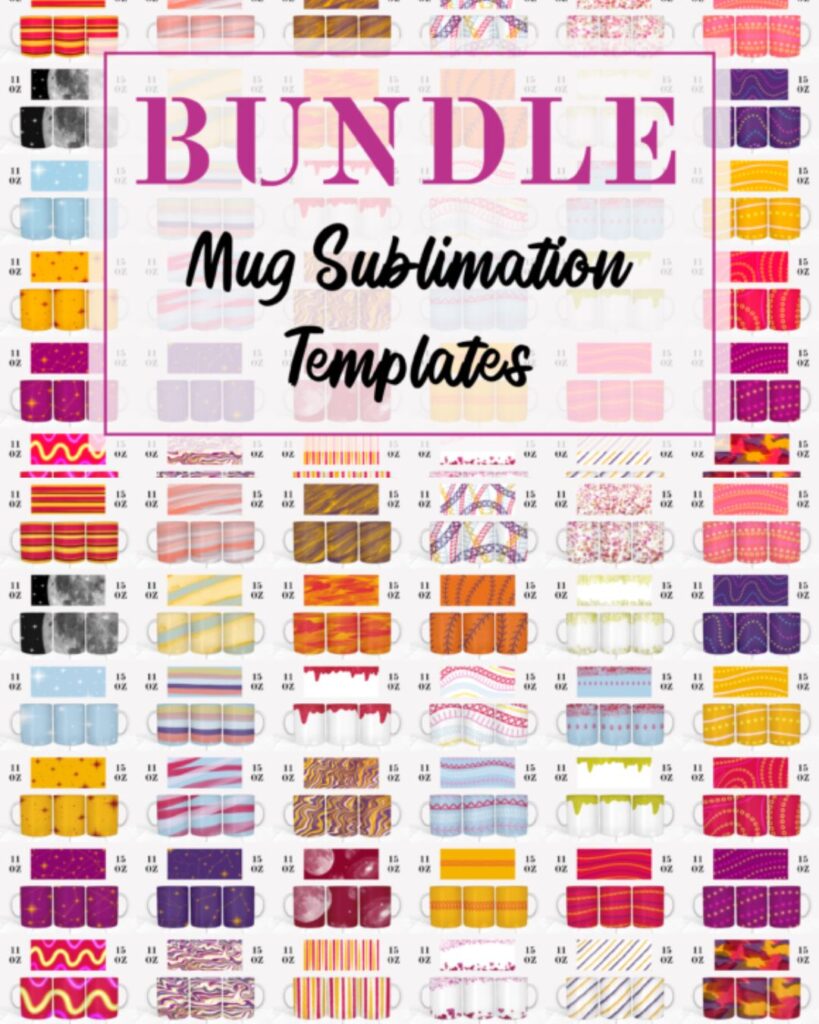
Using a Cricut Mug Press requires a perfect wrap. If your cut isn’t clean, you’ll get «ghosting» around the edges.
Setting Tip: When cutting Infusible Ink sheets, use «More Pressure.» This bundle is a lifesaver because the templates are already sized perfectly for 11oz and 15oz mugs, eliminating the guesswork.
6. Seasonal Ornaments and Laser-Style Cuts
Featured Design: Christmas Ornament Mega SVG Bundle
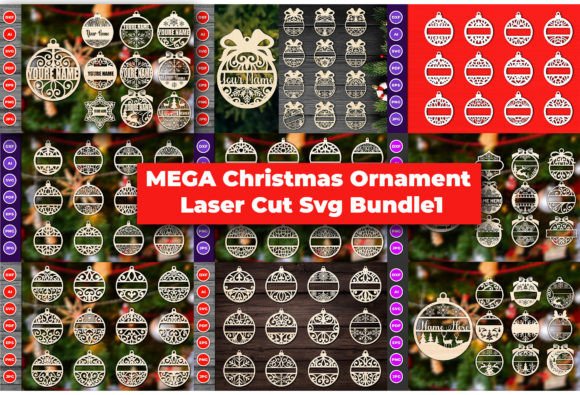
For Cricut Silhouette Christmas Projects, many makers are moving toward wood-look acrylics.
Technical Insight: If you’re using a Knife Blade on wood, remember to tape the edges of your material to the mat with masking tape. These SVG files are also laser-ready (xTool/Glowforge), meaning they have closed paths that won’t confuse your laser’s software.
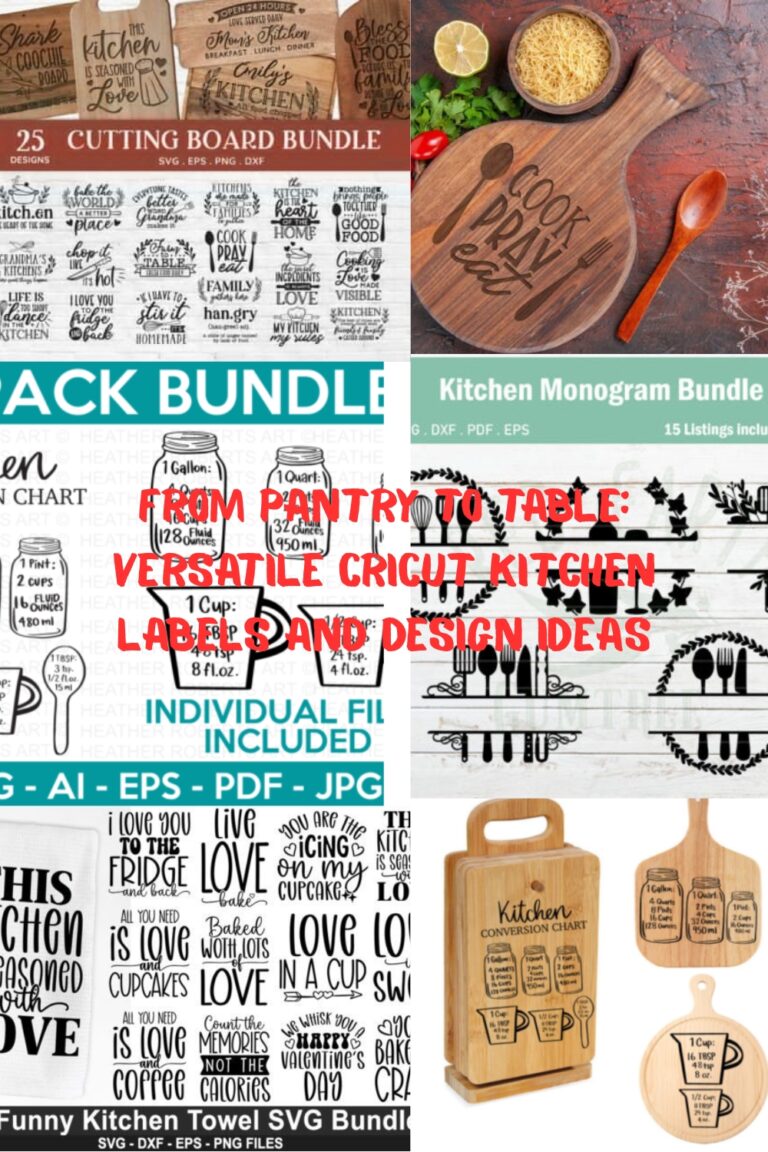
7. Large Scale Farmhouse Decor
Featured Design: Farmhouse Kitchen Signs Bundle
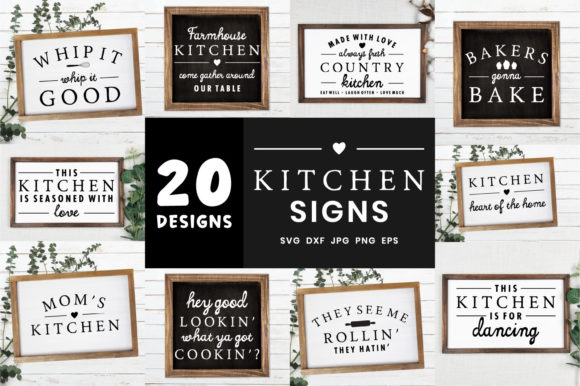
Large wall decals require Permanent Vinyl.
Setting Tip: Cutting large quotes is easy, but weeding them is hard. Use the «Hinge Method» for application. These designs are great for Cricut Projects Ideas Decor Wall Art because they use clean, bold fonts that adhere well to wood and painted surfaces.
8. Custom Packaging and Gift Boxes
Featured Design: Curved Envelope Folding Gift Box
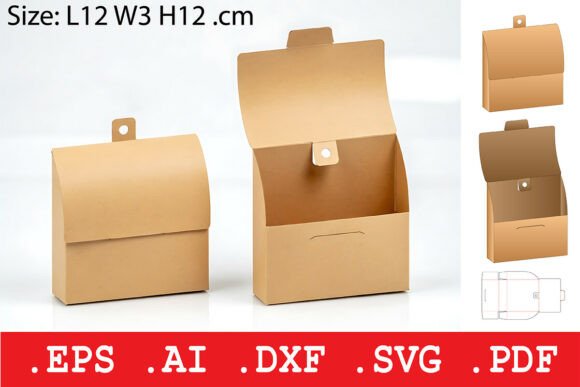
The secret to a perfect box is the Scoring Wheel.
Setting Tip: Make sure your lines are set to «Score» in Design Space. For this specific envelope design, use 65lb to 80lb cardstock. If you go heavier, you may need to increase the scoring pressure to «More» to prevent the paper from cracking when folded.
9. Family Reunion Apparel (Bulk HTV)
Featured Design: Family Reunion Retro Wavy SVG
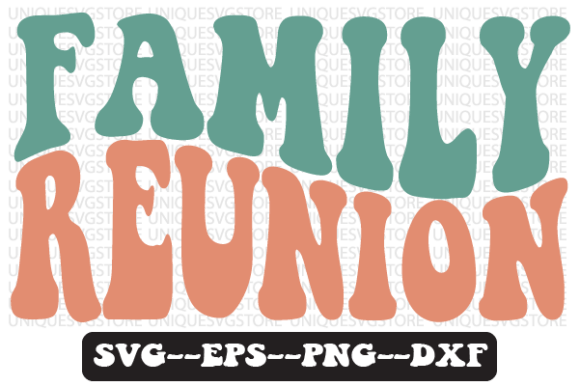
Cutting 20+ shirts for a family event? You need efficiency.
Setting Tip: Always Mirror your design. For these wavy retro fonts, I recommend a «Cold Peel» if you are using metallic or specialty HTV. This bundle is excellent because it’s a high-frequency search item for Etsy sellers.
10. Micro-Projects: Keychains and Charms
Featured Design: Keychain Pattern SVG Set
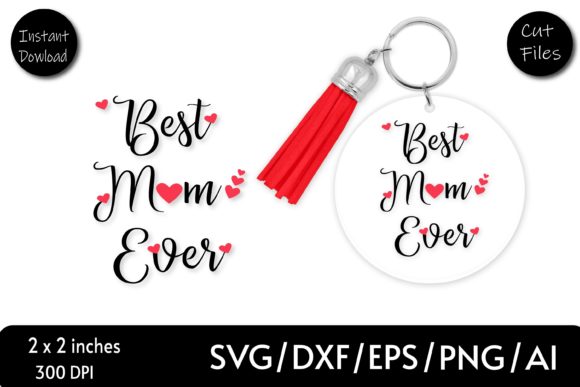
Keychains are great for using up «scraps.»
Technical Insight: Because these designs are tiny, the blade has a tendency to «drag.» Reduce your pressure to «Less» to keep the tiny hearts and letters from moving during the cut.
🛠️ Troubleshooting: Solving Common Cutting Issues
Why is my blade tearing the vinyl?
This usually happens because a tiny piece of debris is stuck in the blade housing.
The Foil Ball Trick: Roll up a ball of aluminum foil and «poke» your blade into it 20-30 times. This removes adhesive residue and micro-burrs, making the blade feel like new again.
My «Print Then Cut» is off-center!
This is a calibration issue. Go to the «Settings» menu in Design Space and select «Calibration.» Follow the prompts exactly. Also, ensure your room lighting is even; shadows can confuse the Cricut’s optical sensor.
Weeding is a nightmare!
If you find yourself struggling to pull up the excess vinyl, your cut wasn’t deep enough. Try the «Reverse Weeding» technique: apply your transfer tape to the entire design before weeding, then peel the backing away. This keeps small letters stuck to the tape while you pull the excess vinyl away.
📈 Business Advantage: The Cost of Quality
As a professional maker, your time is your most valuable asset. Using a Cricut Vinyl Cheat Sheet and investing in professional SVG files from platforms like Creative Fabrica is a strategic business move.
When you use «free» files from unverified sources, you often deal with «messy nodes»—too many cut points that make your machine jitter and tear the material. The designs featured in this guide are optimized for speed and precision, meaning you waste less material and finish orders faster.
Whether you are starting a Cricut Craft Business or just leveling up your hobby, remember: the difference between a «good» project and a «perfect» one is in the settings. Print this guide, calibrate your machine, and start creating with confidence!
Stay tuned for our next guide on Cricut Design Space Tips and Tricks where we dive deep into the latest 2026 software updates!